
Lifetime Activation for IBO Player and Hot Player: UK Guide
What a lifetime activation for IBO Player or Hot Player really buys you, how long the free trials last, how to activate each app step by step, and how to stay safe when you pay.
Published 15 min read
In this article
- The short answer
- What are IBO Player and Hot Player?
- Free trial: how long do you get?
- What "lifetime activation" really means
- Before you pay: find your device ID
- How to activate IBO Player, step by step
- How to activate Hot Player, step by step
- IBO Player or Hot Player: which should you activate?
- Which devices can you activate?
- Common activation problems and fixes
- Stay safe when you activate
- Do you need to activate at all?
- Using UKProviderNow with IBO Player or Hot Player
- IBO Player and Hot Player activation FAQs
- Is IBO Player free?
- Is Hot Player free?
- Does lifetime activation include IPTV channels?
- Can I use one activation on two TVs?
- Do I need to activate again if I buy a new TV?
- Will reinstalling the app reset my activation or trial?
- Can my IPTV provider activate the app for me?
- Which is better, IBO Player or Hot Player?
- Is it legal to use IBO Player or Hot Player?
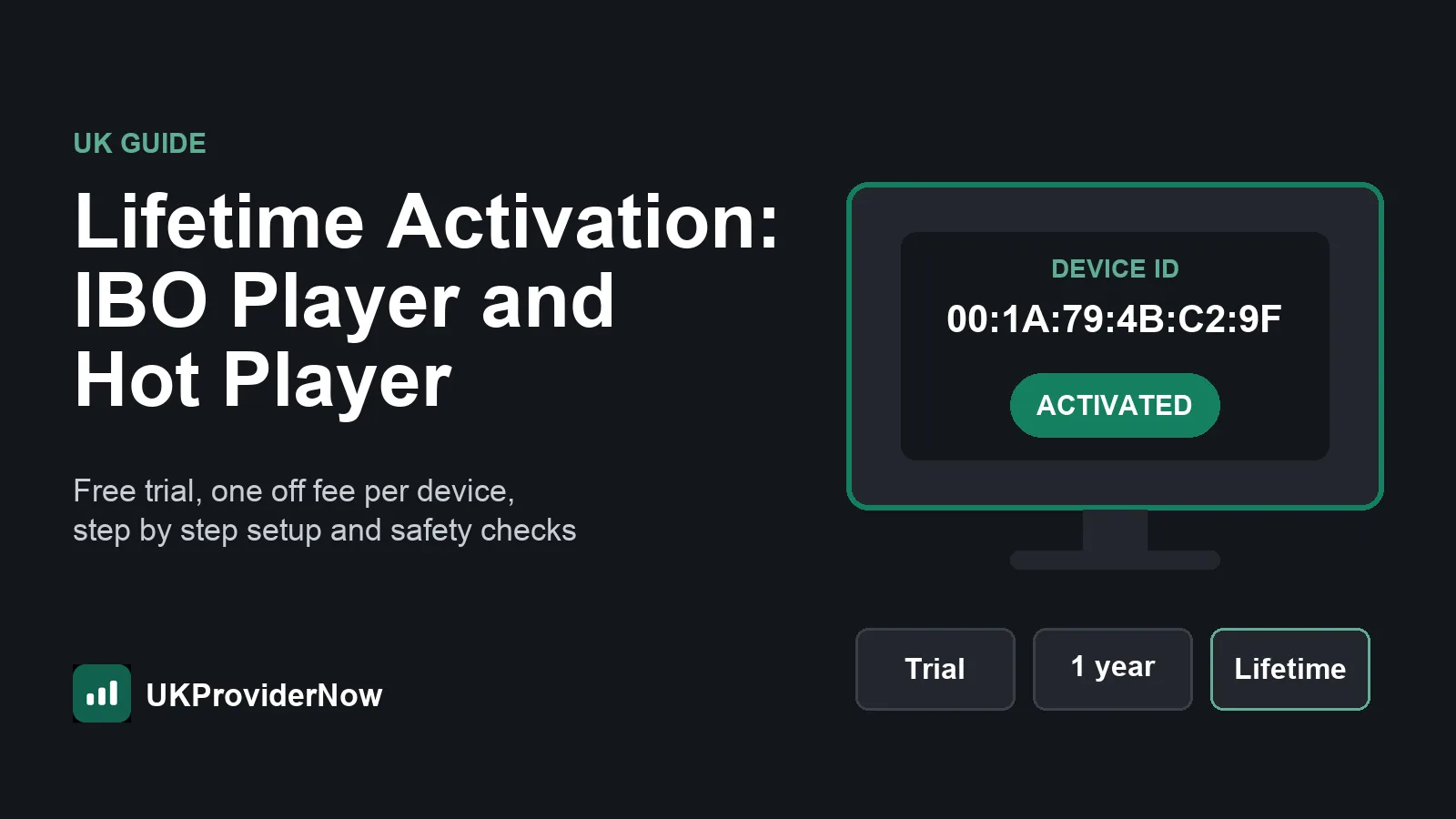
IBO Player activation and Hot Player activation work in a very similar way: you install the app, use the free trial, then pay a small one off fee to unlock it for life on that one device. This guide explains exactly what a lifetime activation buys you, what it does not, how to activate each app step by step, and how to avoid the mistakes that cost people money every week.
We wrote it from the questions our customers send us most often, and from activating both apps ourselves on Samsung, LG and Android TVs, Firesticks and phones across the UK.
The short answer
- IBO Player and Hot Player are media player apps. They play TV channels, films and series from a playlist you add. They come with no channels, no playlists and no IPTV subscription.
- Both give you a free trial when you first install them, so you can test the app on your TV before you pay anything.
- After the trial, you pay the app's developer a one off fee per device to keep using it. This is what "lifetime activation" means.
- The activation is linked to the device ID shown inside the app (a code that looks like a MAC address). It does not move to a new TV.
- You always need a separate IPTV subscription from a provider for something to watch. The app and the subscription are two different purchases from two different companies.
What are IBO Player and Hot Player?
Both apps are IPTV players: software that turns a playlist link or login into a channel list, a TV guide and a library of films and series on your screen. Think of them like a DVD player. The player is yours, but the discs come from somewhere else.
IBO Player is one of the most widely installed IPTV players in the UK, especially on Samsung and LG Smart TVs, where the choice of player apps is smaller than on Android. It supports both M3U playlists and Xtream Codes logins. You can read more about it in our IBO Player guide.
Hot Player (written HotPlayer by its developer) is a newer player with a very wide range of platforms, including Samsung, LG, Android TV, Fire TV, VIDAA, Roku and Windows. It loads M3U playlists, warns you when a list is not working, and lets you keep up to three playlists at once.
Neither company sells channels. Hot Player says so directly on its official website: it describes itself as a pure media player and states that no channels are included with the app or the activation. IBO Player works on exactly the same basis.
Important: the apps contain no channels
This is the single most common misunderstanding we see. People pay for an activation, open the app and find it empty, then think they have been scammed.
The app is working exactly as designed. An empty IBO Player or Hot Player simply means no playlist has been added yet. To watch anything, you need:
- An activated (or trial) player app.
- A playlist or login from an IPTV provider, such as a UK IPTV subscription.
- That playlist added to the app, usually through the developer's website.
Free trial: how long do you get?
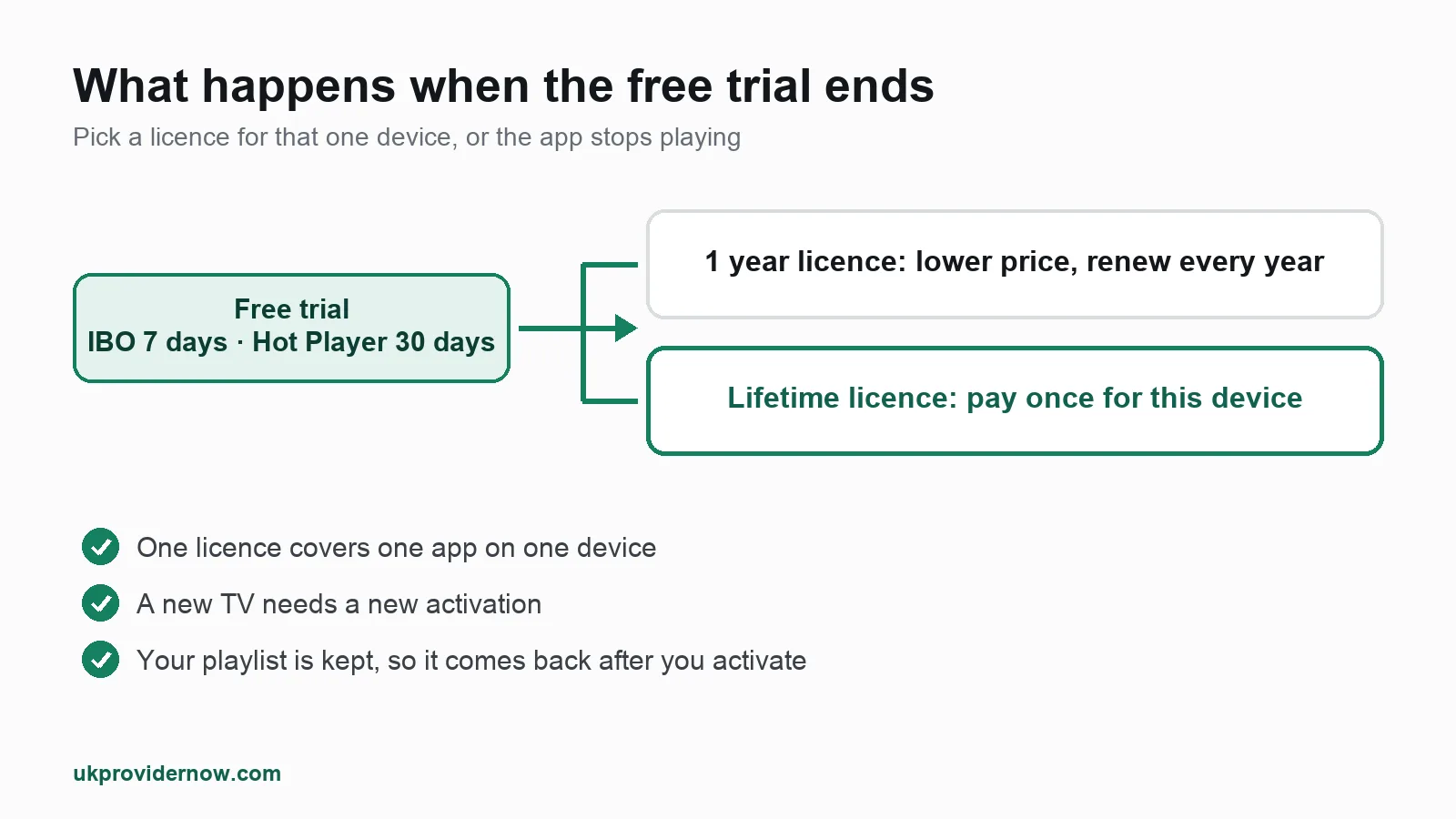
Both apps start a free trial the first time you install them on a device. The trial gives you every feature, so you can check the app runs smoothly on your TV, that the remote works well with it and that your playlist loads.
- IBO Player offers a 7 day free trial on first install.
- Hot Player currently advertises a 30 day free trial on its official website. Some older guides and app versions mention 7 days, so check the date shown in the app itself.
The trial is linked to the device, not to you. Uninstalling and reinstalling the app on the same TV does not normally start a new trial, because the app recognises the same device ID.
When the trial ends, the app shows a message asking you to activate it, and playback stops until you do. Your playlist is usually kept, so once you activate, everything comes straight back.
Our advice: use the trial properly. Add your real playlist, watch a few channels in the evening when broadband is busiest, open the TV guide and try a film. If you do not have a subscription yet, our free IPTV trial gives you a test line to load into the app at the same time, so you test the player and the service together before paying for either.
What "lifetime activation" really means
When the trial ends, each developer offers a paid licence:
| IBO Player | Hot Player | |
|---|---|---|
| Free trial | 7 days | 30 days (check in app) |
| Lifetime option | One off fee per device | "Forever" licence per device |
| Shorter option | 1 year licence on some versions | 1 year licence |
| Activation is linked to | Device ID (MAC format) and Device Key | MAC address shown in the app |
| Where you pay | iboplayer.com | hotplayer.app |
| Channels included | None | None |
At the time of writing (October 2026), both lifetime fees are roughly the price of a takeaway lunch: around 10 to 11 euros per device, charged in the developer's own currency, so the exact amount you see in pounds depends on the exchange rate. The 1 year options cost less but need renewing. Always check the price on the official activation page on the day you buy, because the developers set and change it.
Lifetime is per device
This is the part that catches most people out. A lifetime activation is for one app on one device:
- Two TVs need two activations.
- A new TV needs a new activation, even if you activated the old one.
- Activating IBO Player does not activate Hot Player, or any other app.
- On Android and Fire TV, IBO Player and IBO Player Pro are listed as separate apps. Check which one is installed before you pay, and activate the device ID shown in that app.
Lifetime means the life of the app
"Lifetime" means for as long as the developer keeps that app and its activation servers running. Both apps have been around for years and are widely used, but no one can promise forever. This is one more reason to pay the lifetime fee only once you are happy with the app after the trial.
What activation does not include
An activation unlocks the player. It does not include:
- Any TV channels, films or series.
- An IPTV subscription, or any renewal of one.
- A TV guide (EPG) of its own. The guide comes with your provider's playlist.
- Setup of your playlist. You still add that yourself, or ask your provider for help.
Your IPTV subscription has its own expiry date, completely separate from the app. You can check when yours runs out with our free IPTV expiry date checker.
Before you pay: find your device ID
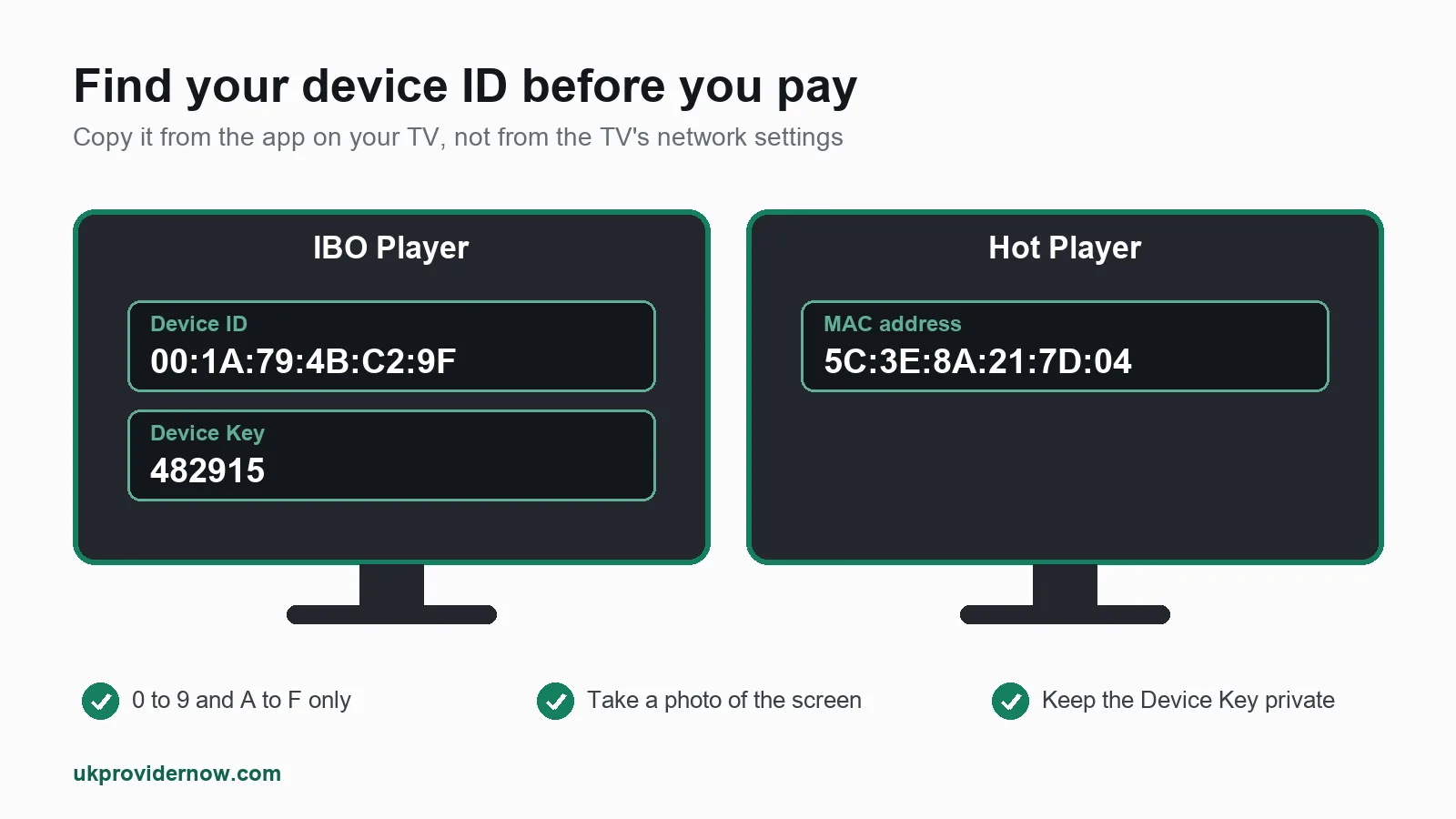
Every activation starts with the code the app shows on your TV screen.
In IBO Player, open the app. The start screen shows a Device ID (also called the MAC address) and a Device Key. If they are not on the first screen, look in the app's settings or info section.
In Hot Player, open the app. The start screen shows the MAC address that the app uses for activation and for uploading playlists.
A few tips that save a lot of trouble:
- The MAC address in the app is the one that counts. It is often not the same as the MAC address in your TV's own network settings, because many player apps create their own ID. Always copy it from the app.
- A MAC address is six pairs of characters, using only the numbers 0 to 9 and the letters A to F, for example
00:1A:79:4B:C2:9F. The letter O and the number 0 are easy to mix up, and so are B and 8. If you are unsure whether you copied it correctly, our MAC address checker can check the format for you. - Take a photo of the screen with your phone. It is the easiest way to copy the code accurately, and it gives you a record if you ever need to contact the developer.
- Keep your IBO Device Key private. Together with the device ID, it lets someone change the playlists on your TV.
How to activate IBO Player, step by step
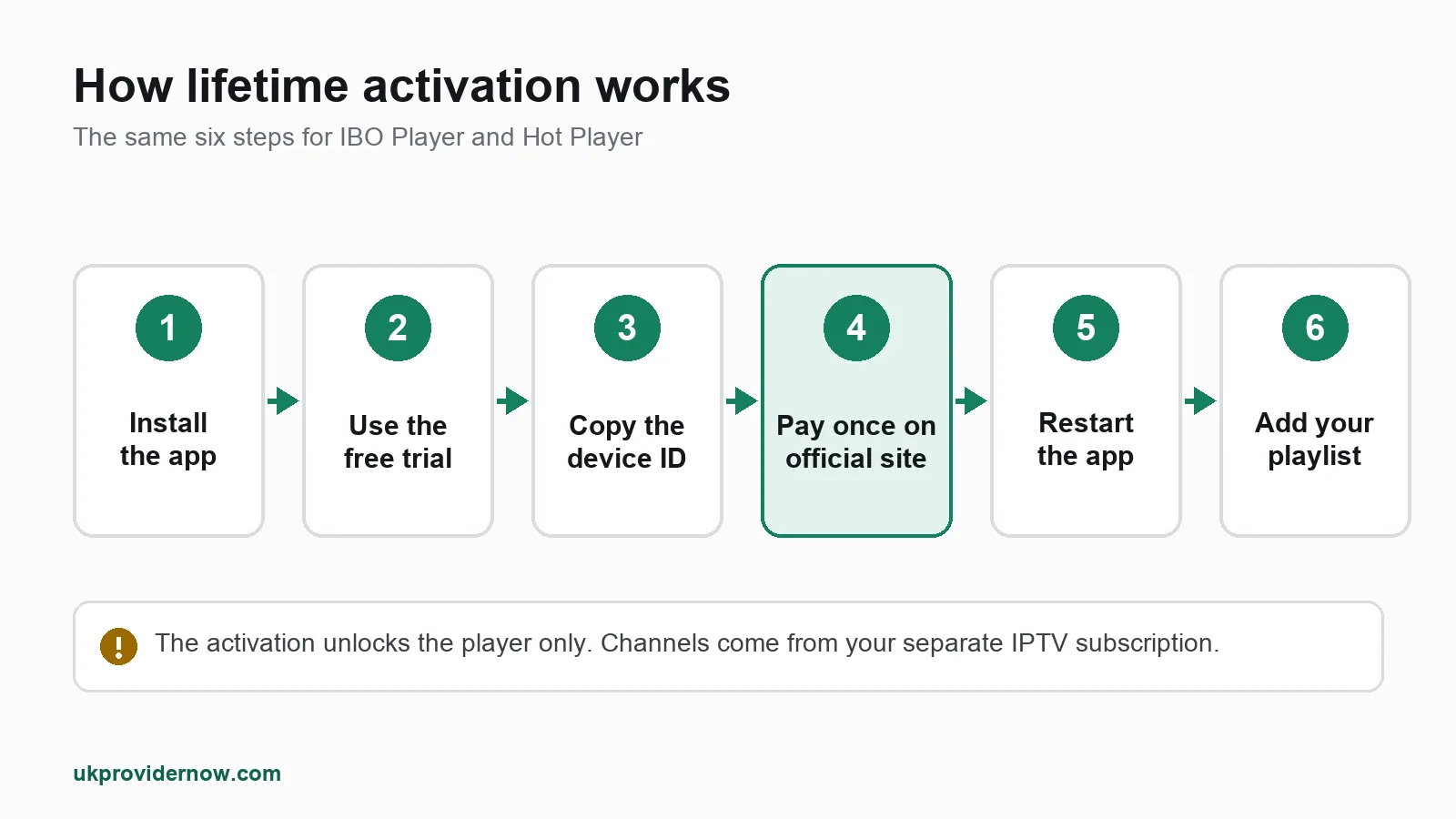
- Install IBO Player from your TV's app store (Samsung, LG, Android TV or Google TV) or your device's store. Check the publisher name, because several similar apps use the IBO name.
- Open the app and write down the Device ID and Device Key shown on the screen.
- Go to the official website, iboplayer.com, on your phone or computer, and open the activation page.
- Enter your Device ID exactly as the app shows it, choose the lifetime option and pay. Read the confirmation carefully: it should show the same Device ID as your TV.
- Restart IBO Player on your TV. Close it fully, then open it again. The trial message should be gone. If it is not, wait a few minutes and restart once more.
- Add your playlist. On iboplayer.com, log in to your device with the Device ID and Device Key, then add your M3U link or your Xtream Codes details (server address, username and password). Give the playlist a name you will recognise.
- Reload the app on your TV and pick your playlist. The channel list, TV guide, films and series load from your provider.
If you have a choice, use Xtream Codes rather than an M3U link. IBO Player sorts films and series into neat menus with an Xtream login and usually loads the TV guide automatically. If a playlist will not load, test it first with our M3U validator or Xtream Codes checker to find out whether the problem is the login or the app.
How to activate Hot Player, step by step
- Install Hot Player from your device's app store. It is available on Samsung, LG, Android TV, Fire TV, VIDAA, Roku and more.
- Open the app and note the MAC address shown on the screen.
- Go to the official website, hotplayer.app, and open the activation page.
- Enter your MAC address, choose the 1 year or forever option, accept the terms (which confirm the app includes no content) and pay.
- Restart Hot Player on your TV. The activation should now show as active.
- Upload your playlist. On hotplayer.app, open the upload page, enter your MAC address, then paste your provider's M3U link and give the playlist a name. Save it.
- Reload the app on your TV. Your playlist appears and the channels load. Hot Player lets you keep up to three playlists, which is handy if you want a backup.
Hot Player loads playlists as M3U links. Your provider can give you an M3U link even if you normally use an Xtream Codes login, because both describe the same subscription.
IBO Player or Hot Player: which should you activate?
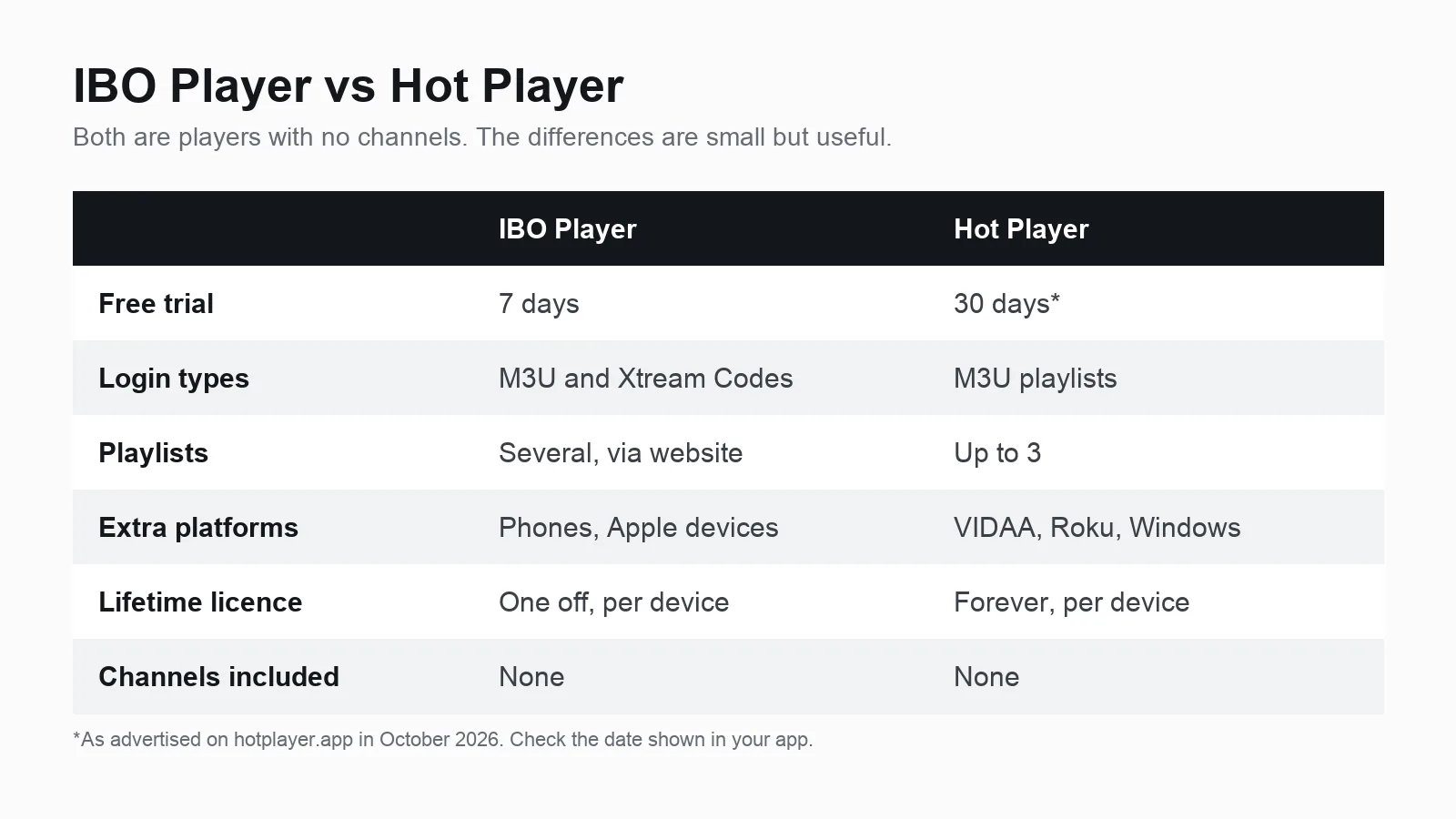
Both are good players and both cost about the same for a lifetime activation. The right choice depends on your TV and how you log in.
Choose IBO Player if:
- Your provider gave you an Xtream Codes login and you want films and series sorted into menus.
- You have a Samsung or LG Smart TV and want one of the most used players on those TVs.
- You like a familiar layout. Many UK setup guides, including ours, use it.
Choose Hot Player if:
- You want a longer free trial to test properly.
- You have a TV the other app does not support well, such as VIDAA (Hisense), Roku or a Windows computer.
- You want to keep more than one playlist ready in the app.
Still not sure? Install both. Each has its own free trial, so you can test them side by side on the same TV with the same playlist and only pay for the one you prefer. Our player compatibility checker also shows which players run on your exact device, and our IPTV apps guide compares the alternatives, including Smart IPTV, which uses a similar paid activation, and the free Flix IPTV.
Which devices can you activate?
Both apps cover the devices most UK homes use. Each activation covers one of them.
Samsung and LG Smart TVs
This is where IBO Player and Hot Player are most useful, because Samsung (Tizen) and LG (webOS) TVs cannot run the Android apps that Firestick owners use. Install the app from the TV's own app store. If you are not sure your model is supported, check it with our Smart TV IPTV checker, and see our help guide on IPTV on Samsung and LG Smart TVs.
Android TV, Google TV and Fire TV
Both apps run on Android TV and Google TV, and on the Amazon Fire TV Stick. On these devices you also have free players such as TiviMate and IPTV Smarters, so a paid activation is optional rather than essential. Our Firestick IPTV setup checker tells you whether your stick is up to the job.
Other devices
Hot Player also covers VIDAA (common on Hisense TVs), Roku, Whale TV, Titan OS and Windows. IBO Player has versions for phones, tablets and Apple devices. Our IPTV devices guide explains the strengths of each.
Common activation problems and fixes
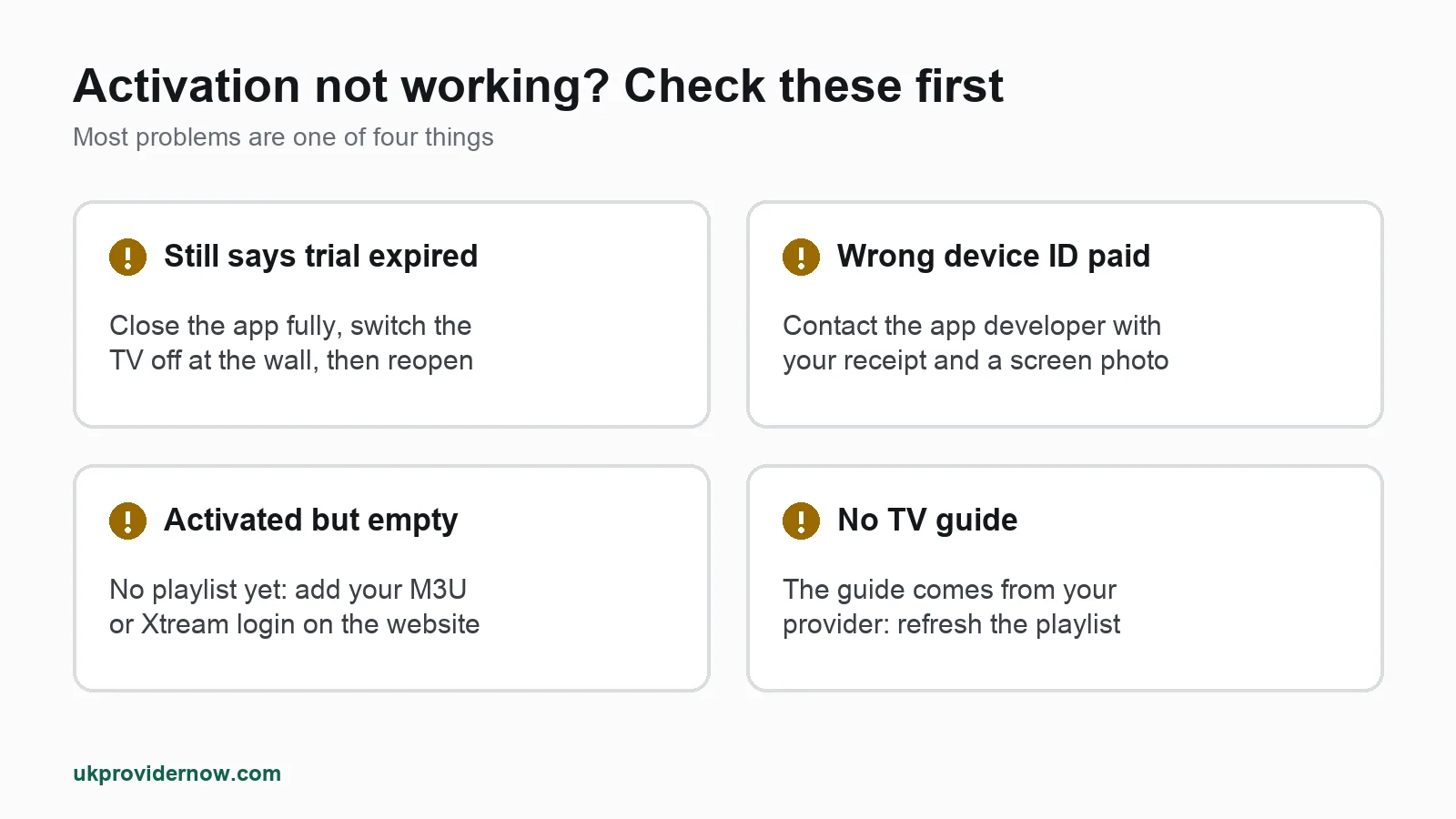
The app still says "trial expired" after paying. Close the app completely and open it again. If the TV keeps apps running in the background, switch the TV off at the wall for a minute. Then check your payment confirmation shows exactly the same device ID as your screen. A single wrong character activates someone else's device, or no device at all.
I activated the wrong device ID. Contact the app developer through their official website with your payment confirmation and a photo of the correct ID on your screen. Your IPTV provider cannot move an activation for you, because they do not run the app.
The app is activated but there are no channels. The activation worked; the playlist is missing or not loading. Add your playlist on the developer's website, then reload the app. If channels still do not load, see our guide to channels not loading.
My TV guide is empty. The guide comes from your provider, not the app. Refresh the playlist in the app, or use an Xtream Codes login in IBO Player so the guide loads automatically. Our help article on fixing an empty or wrong TV guide covers the rest.
The device ID changed after a reset. Some apps generate a new ID after a factory reset or a major app update. If that happens, contact the developer with your original payment confirmation and both IDs. This is exactly why we recommend keeping that photo of your screen.
Channels buffer in the evening. That is your connection or your provider, not the activation. Run our IPTV speed test at the time it happens and see our step by step buffering fixes.
Stay safe when you activate
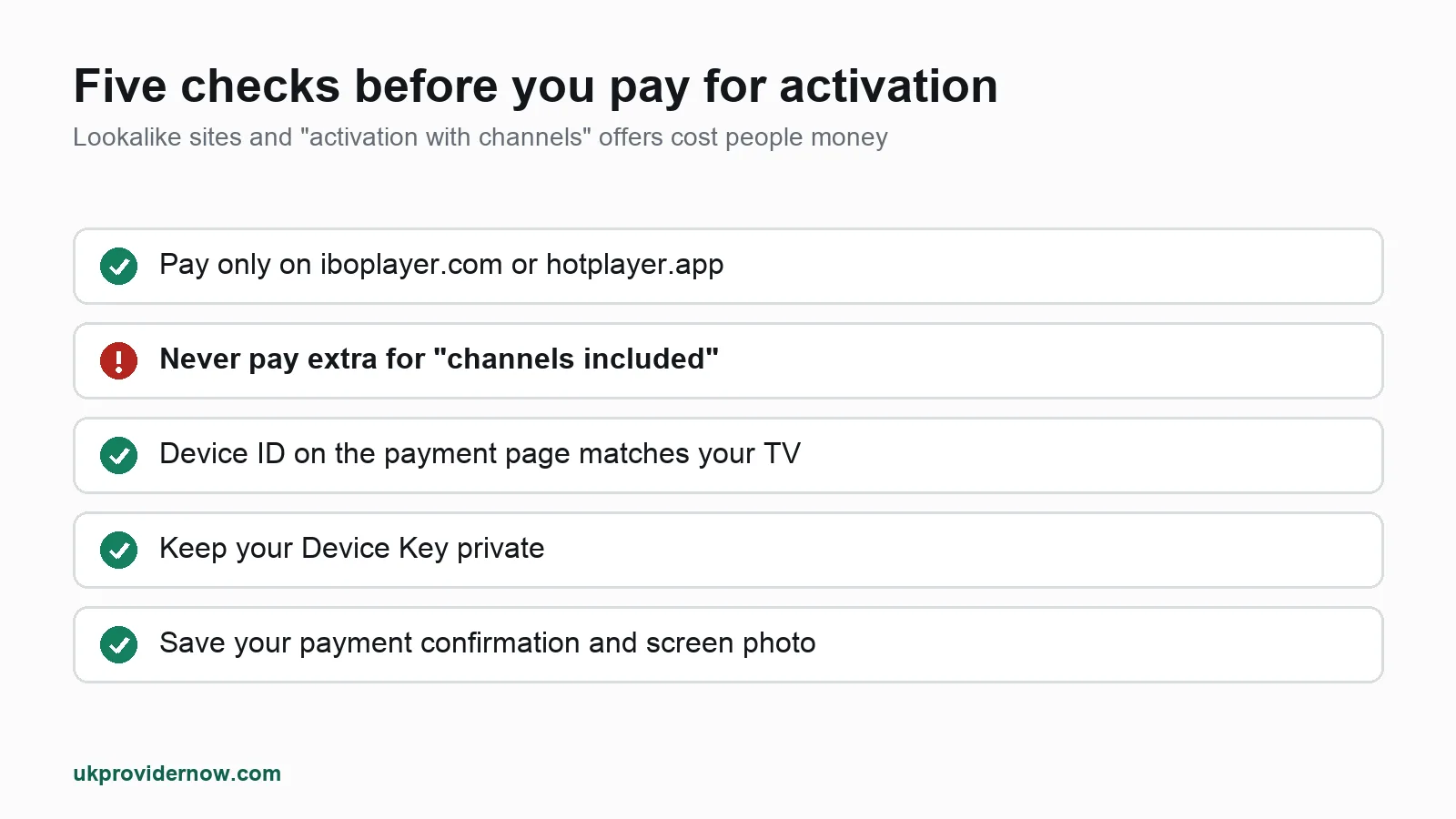
Because these apps are so popular, there are many websites and sellers offering "IBO Player activation" or "Hot Player activation", and not all of them are genuine. Several lookalike websites use the IBO name in their web address. Follow these rules:
- Pay only on the official website: iboplayer.com for IBO Player and hotplayer.app for Hot Player. Type the address yourself rather than clicking an advert.
- Never pay a seller to "include channels" with an activation. No genuine activation includes channels. The developers say so themselves.
- Check the device ID on the payment page matches your screen before you pay.
- Keep your Device Key private. Do not post photos of it in groups or forums.
- Keep your payment confirmation and the photo of your device ID. They are your proof if you ever need help from the developer.
Do you need to activate at all?
Not always. A paid activation makes most sense on Samsung and LG Smart TVs, where the best players are paid apps. On Android TV, Google TV and Firesticks there are good free options, so you may never need to pay.
What you always need is a reliable service to play. A player can only be as good as the playlist inside it: a perfect app will still buffer if the provider's servers are overloaded.
Using UKProviderNow with IBO Player or Hot Player
Our subscriptions work with both apps. Every plan comes with an M3U link and an Xtream Codes login, so you can use IBO Player, Hot Player or any other player you like. The app activation is paid to the app's developer; your subscription is with us, and we never charge you for the app.
- Test first. Request a free IPTV trial and load it into the app during the app's own free trial. You test the player and the service together before paying for either.
- Prepaid plans, no automatic renewal. Compare our IPTV subscription plans and see what is included with our UK IPTV service.
- Help with setup. Our Help Center covers every device, and if you would rather someone did it with you, our TV setup help team can walk you through the activation and playlist steps remotely.
If you are weighing up how long to subscribe for, our guide to the monthly IPTV subscription explains how monthly plans compare with longer ones.
IBO Player and Hot Player activation FAQs
Is IBO Player free?
IBO Player is free to download and free for the 7 day trial. After that, you pay a one off activation fee per device to keep using it, or a cheaper yearly fee where that option is offered.
Is Hot Player free?
Hot Player is free to download with a free trial, currently 30 days according to its official website. After the trial you choose a 1 year licence or a forever licence for that device.
Does lifetime activation include IPTV channels?
No. Lifetime activation only unlocks the player app. Channels, films and series come from your IPTV subscription, which you buy separately from a provider.
Can I use one activation on two TVs?
No. Each activation is linked to one device ID, so each TV or streaming stick needs its own activation. You can, however, use the same IPTV subscription on several devices, one at a time, unless your plan includes more connections.
Do I need to activate again if I buy a new TV?
Yes. A new TV shows a new device ID in the app, so it needs its own activation. The old activation stays linked to the old TV.
Will reinstalling the app reset my activation or trial?
Usually not. On the same TV, the app normally shows the same device ID after reinstalling, so your activation stays and the trial does not restart. A factory reset can sometimes change the ID; if it does, contact the developer with your payment confirmation.
Can my IPTV provider activate the app for me?
Your provider can guide you through the steps, but the payment and activation are handled by the app developer on their own website. Be careful with anyone who offers activation together with "free channels".
Which is better, IBO Player or Hot Player?
Both are solid players. IBO Player is the better fit if you use Xtream Codes on a Samsung or LG TV. Hot Player has a longer trial, keeps up to three playlists and supports more TV platforms, such as VIDAA and Roku. Try both during their free trials and pay only for the one you prefer.
Is it legal to use IBO Player or Hot Player?
Yes. Both are legal media player apps available in official app stores. What matters is the content you play in them, so use a playlist from a legitimate provider.
Useful next steps
- IPTV apps and playersEvery player we support, compared.
- TiviMate guideSetup, features and tips for TiviMate.
- IPTV Smarters Pro guideSetup, features and tips for IPTV Smarters Pro.
- IMPlayer guideSetup, features and tips for IMPlayer.
- Player Compatibility CheckerThe best IPTV app for your device.
- EPG ValidatorFix an empty or out-of-date TV guide.
Published by UKProviderNow, a UK IPTV provider. About us · Contact us · Help Center
Questions and comments